Block
The shape of your entity
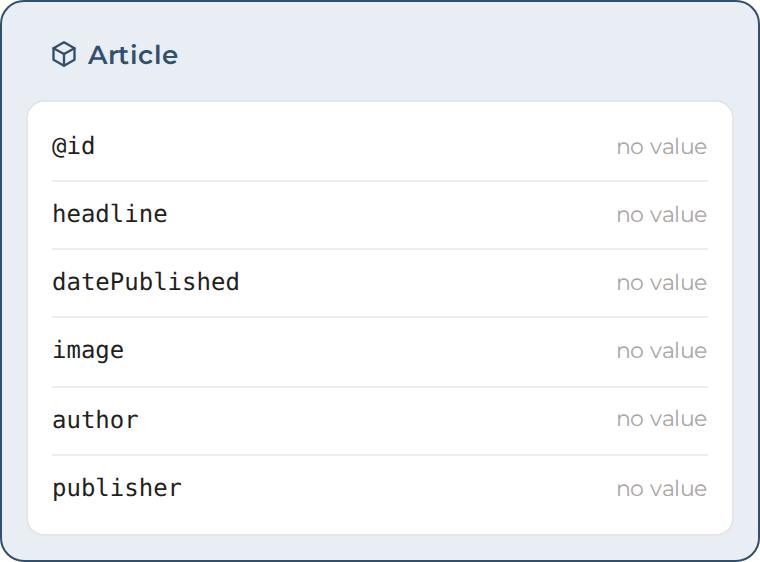
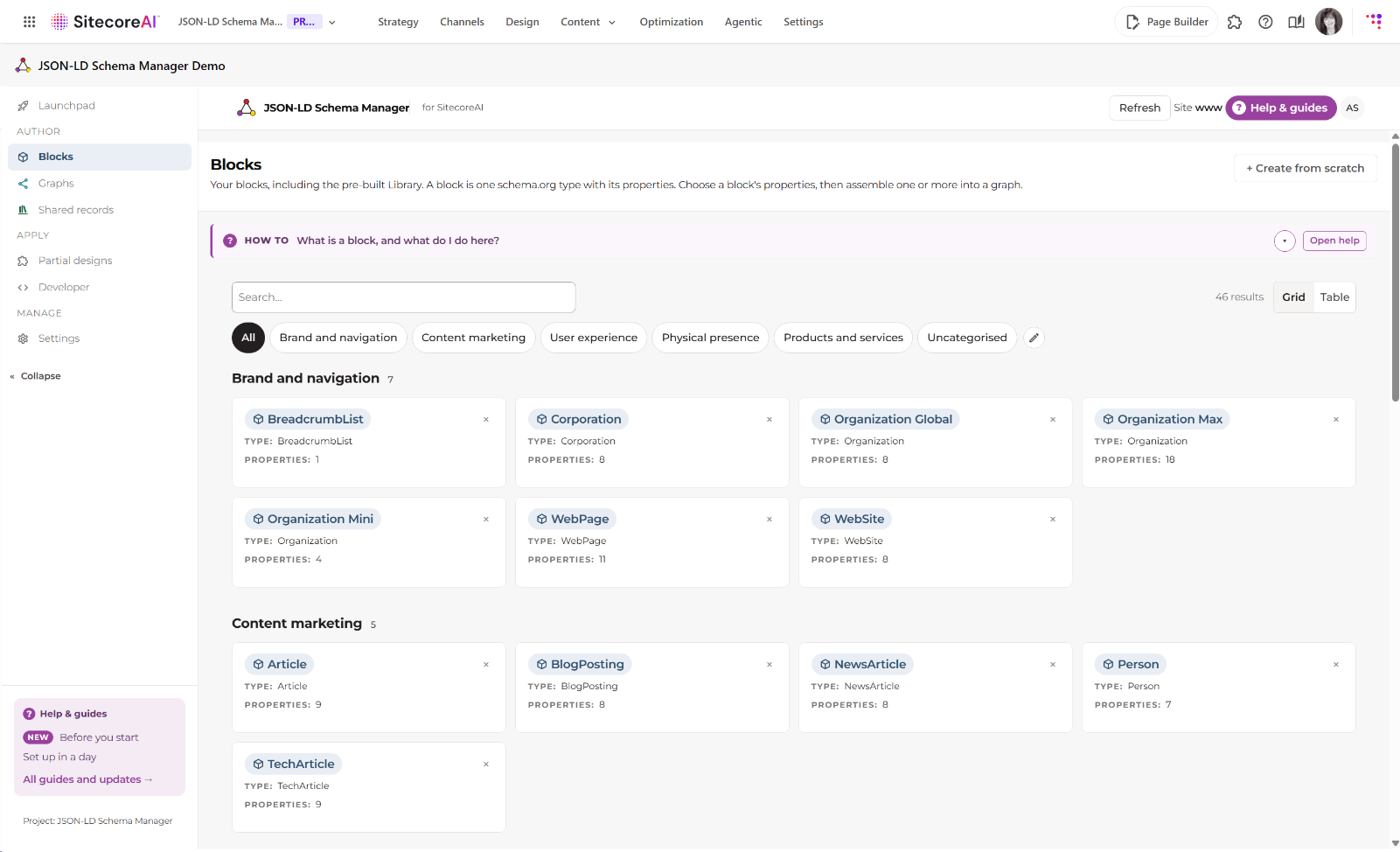
Each block contains one schema.org entity type and the properties you want to use. Around 30 come pre-built and ready to be built.
 Expand
The Article block: its properties, with no values.
JSON-LD Schema Manager is a SitecoreAI Marketplace app that lets your marketing team manage schema markup without code. You build graphs once, and Sitecore renders the JSON-LD into every page built on the matching template.
The big picture
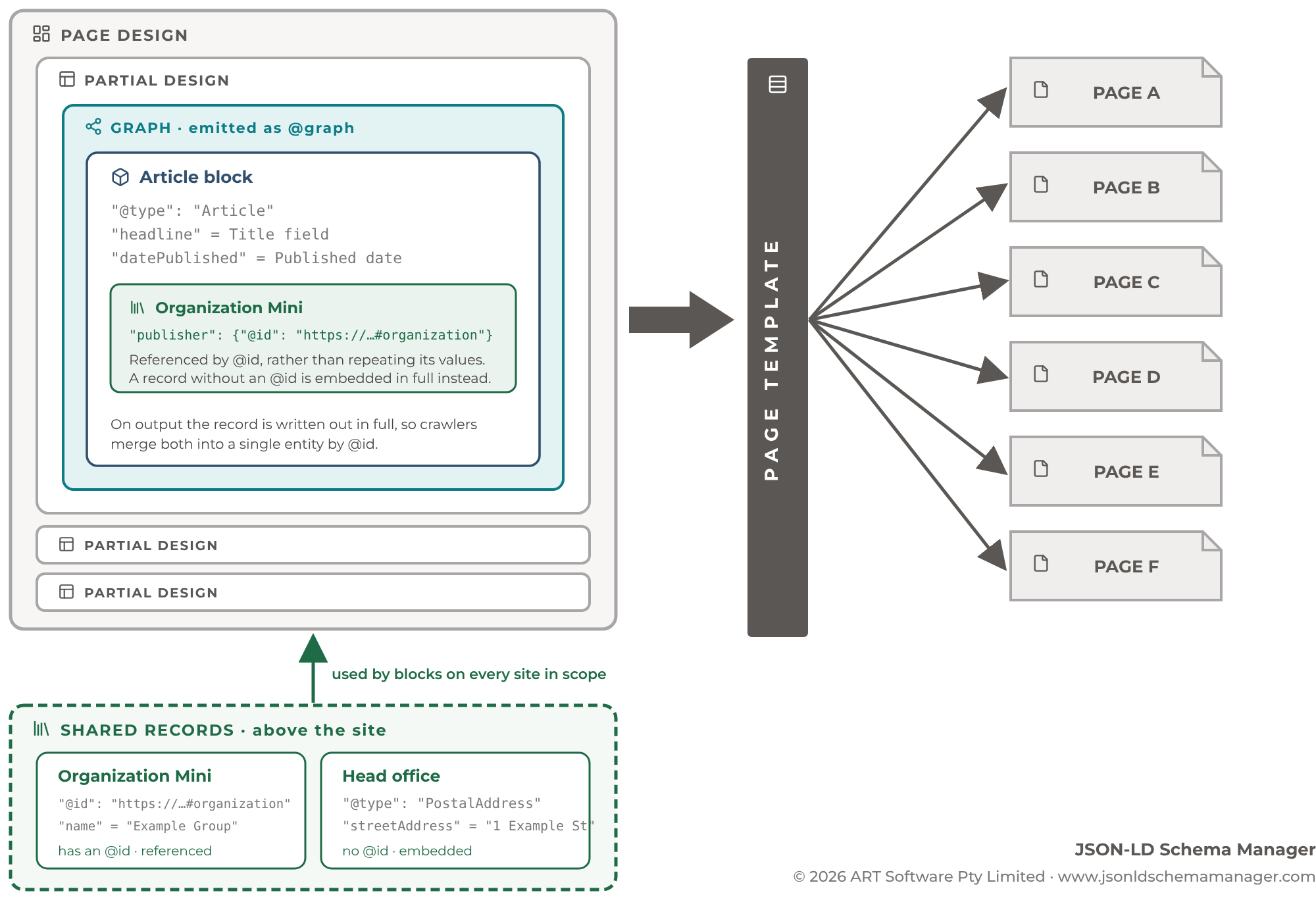
A block sits inside a graph. The graph becomes a partial design in Sitecore, the partial design sits in a page design, and every page built on that page template publishes the JSON-LD.
The building blocks
We have designed three core items to build your schema. The block is the shape of your entity. The shared record holds the facts you state once. The graph groups blocks, links them to a content type, and sets the values. The guides and in-app support will help you use these to build your schema.
Each block contains one schema.org entity type and the properties you want to use. Around 30 come pre-built and ready to be built.
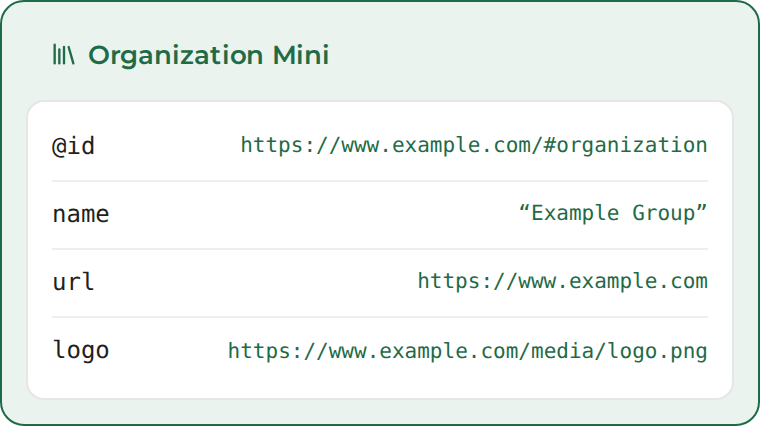
ExpandFixed text, typed once. Every graph that points at it publishes exactly the same thing.
 Expand
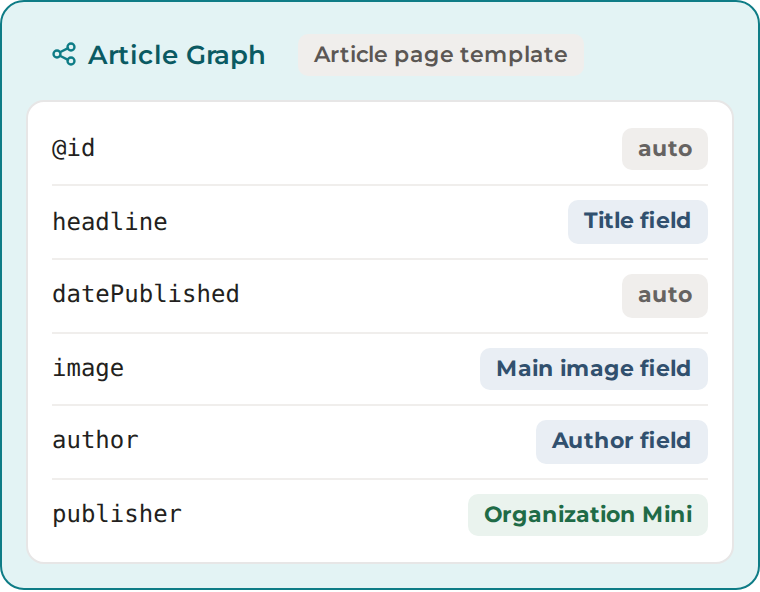
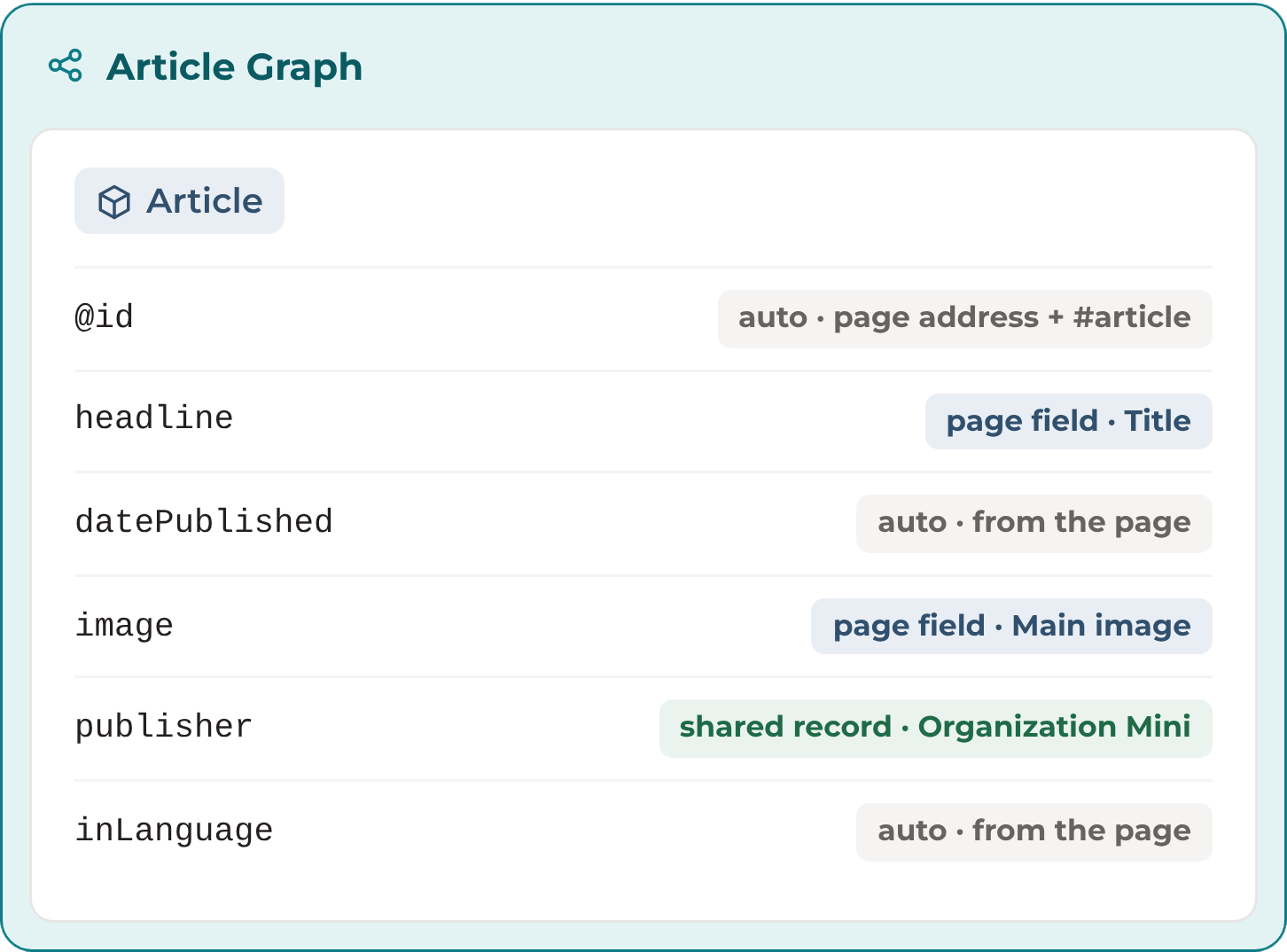
The graph contains the Article block. Its publisher property references the Organization Mini shared record. The graph becomes a partial design in Sitecore.
 Expand
Inside a graph
A graph maps the properties of each entity type to the template fields once. Every page built on the template then supplies its own values.
Organization is the publisher of the website, the provider of a product and the employer of a person.legalName property of the Organization type.Connecting your entities
Each entity your pages describe, such as your organization, a person or an article, gets an @id. It is a stable identifier that stays the same on every page that mentions the entity. Blocks point at each other by @id, so search engines and answer engines join them into one picture of who you are and what you publish.
@id from the page’s own address and the type. Use it for things that belong to one page, such as an article.@id in the same form, so identifiers do not drift from page to page.@id of their own.{
"@type": "Article",
"@id": "https://www.example.com/articles/plan-a-home-renovation/#article",
"author": {
"@id": "https://www.example.com/people/alex-smith/#person" },
"publisher": {
"@id": "https://www.example.com/#organization" }
}
The article’s identifier is auto-generated from its page. The author and publisher use custom patterns, so every page that mentions them points at the same entity.
What is rendered on the page
The JSON-LD is part of the HTML every visitor receives, in the head of the page, above the main content. Nothing is injected by a script.
<head>
  <title>How to plan a home renovation</title>
  <!-- Partial design: Article Graph -->
  <script type="application/ld+json">
    {
      "@context": "https://schema.org",
      "@graph": [
        {
          "@type": "Organization",
          "@id": "https://www.example.com/#organization",
          "name": "Example Group",
          "url": "https://www.example.com"
        },
        {
          "@type": "Article",
          "@id": "https://www.example.com/articles/plan-a-home-renovation/#article",
          "headline": "How to plan a home renovation",
          "author": {
            "@type": "Person",
            "@id": "https://www.example.com/people/alex-smith/#person",
            "name": "Alex Smith"
          },
          "publisher": { "@id": "https://www.example.com/#organization" }
        }
      ]
    }
  </script>
</head>
<!-- the page body follows -->
Building it in the app
Around 30 arrive pre-configured for the types enterprise sites use, and the whole schema.org catalogue sits behind them.
 Expand
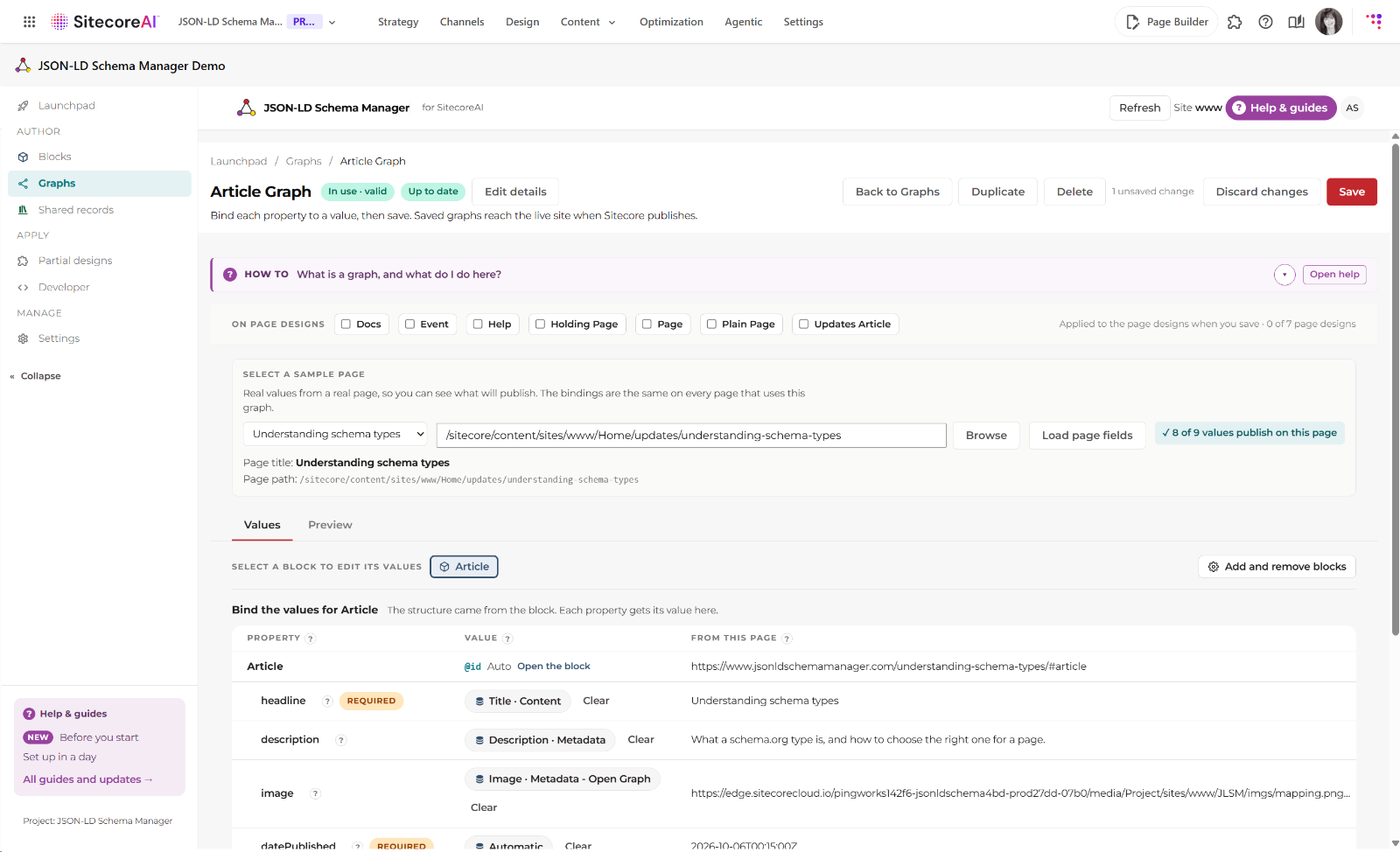
A field on the page template, a fixed value typed once, or a shared record. Changing a mapping is a content change and a publish, not a ticket and a backlog.
 Expand
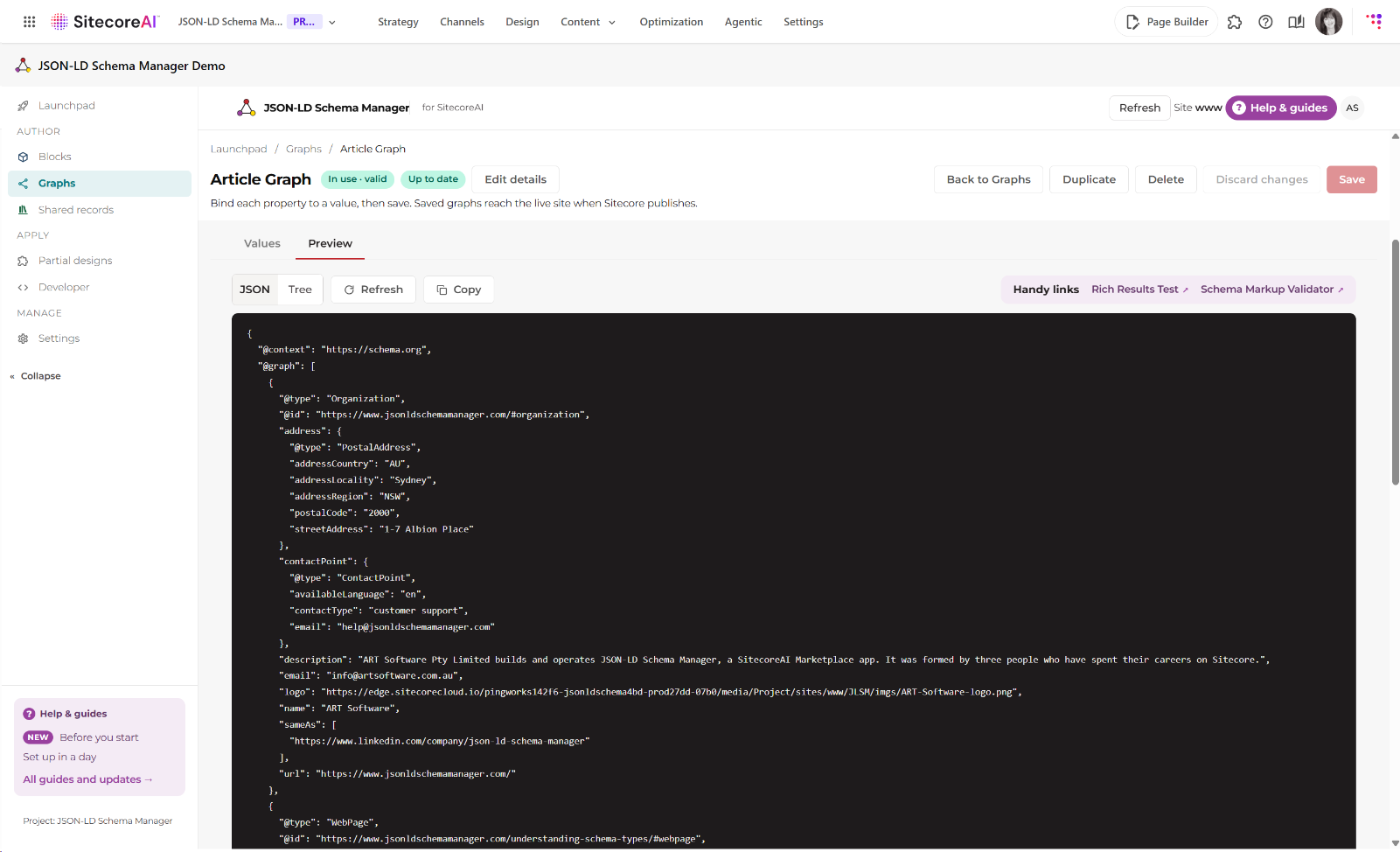
See the exact output for a real page before it goes live, then copy it to the Schema.org validator or Google Rich Results Test. In-app guides tell you when you've missed required values.
 Expand
Ownership
This is the question most developers ask first, so here is the plain answer. The app is a user interface that makes a set of complicated Sitecore content items easy to configure, provides strategic help to deliver the best results, and keeps them current as the schema.org vocabulary changes.
The schema configuration is content items in your own Sitecore content tree. It is your content and your IP, under your governance. It stays there if you stop using the app.
At page building and publishing time, it is your hosting and your environments, running Sitecore’s own rendering. Nothing of ours takes part in delivering a page.
Nothing about your schemas, field values or usage is held anywhere outside your own Sitecore infrastructure. There is no new place for your data to sit.
Billing details only, in Stripe. Nothing from your Sitecore tenant.
PING Works, a Sitecore Gold Partner, and an ISO 9001 and ISO/IEC 27001 accredited provider and Microsoft CSP.
No. It adds JSON-LD to the page through a partial design. Your page content stays as it is.
No. It is part of the page HTML, so every crawler reads it, including AI crawlers that do not run JavaScript.
Yes. The preview shows the exact JSON-LD for a sample page, and you can send it to the Google Rich Results Test from the same screen.
The graph shows VALUE NEEDED. JLSM leaves that property out rather than publish an empty value, so the entity is not valid until you add one.
You can, but it gives that entity a new identity, and search engines treat it as a new thing. Set your patterns before you publish.
For a few hours at the start, to add the rendering component. After that, your marketing team does the work.
Request a free schema gap analysis. We check your site, show you what it publishes today and what is missing, and talk you through what JSON-LD Schema Manager would add.